The meter,
on your toolbar.
The FOMO score sits on your Chrome toolbar all day. Green when it is quiet, red when you are late. No tab to keep open, no wallet, no login.
Not on the Chrome Web Store yet — install it manually with the four steps below. It takes about a minute.
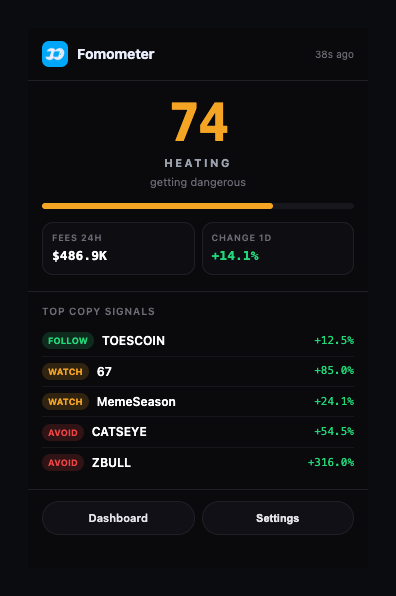
Score on the badge
0 to 100 right on the icon, colour-coded by band. Refreshes every 5 minutes.
Threshold alerts
Pick your number. You get pinged on the crossing — not every five minutes while it sits there.
Top copy signals
Five tokens with FOLLOW / WATCH / AVOID in the popup. Click one to open it on fomo.
Install in four steps
-
1
Download and unzip
You get a folder called
fomometer-extension. Keep it somewhere you will not delete by accident. -
2
Open the extensions page
Type
chrome://extensionsin the address bar and hit enter. -
3
Turn on Developer mode
Toggle at the top right. Three buttons appear.
-
4
Load unpacked → pick the folder
Select the folder itself, not a file inside it. The badge appears within seconds.
Chrome will warn you about developer mode
That warning appears for every manually installed extension, not because of this one. It goes away once Fomometer is on the Chrome Web Store. Until then you can read every line of what you installed — it is 13 small files, no build step, no minified bundle.
What it can and cannot do
It only asks for
- ✓storage — remember your alert threshold
- ✓alarms — refresh every 5 minutes
- ✓notifications — show the alert
- ✓Network access to llama.fi and dexscreener.com only
It never
- ✕Asks for a private key or seed phrase
- ✕Requests a transaction signature
- ✕Reads the pages you browse
- ✕Sends anything about you anywhere
Chrome states this itself: open the puzzle icon and Fomometer is listed under “No access needed” — it cannot see or change any site you visit.